

Budget gaming laptops have a reputation problem. Too often, “affordable” translates to compromised performance, cheap plastic builds, and thermal throttling that kicks in five minutes into a session. The MSI GF63 Thin has been challenging that narrative since its initial release, and the 2026 lineup continues to offer a compelling option for gamers who need solid 1080p performance without dropping $1,500-plus on a rig.
This guide breaks down everything you need to know about the MSI GF63 Thin: whether it can actually run modern titles at playable frame rates, how it stacks up against competitors like the ASUS TUF and Acer Nitro series, and who should (and shouldn’t) consider it. If you’re weighing your options in the budget gaming space or wondering if MSI’s thin-and-light approach sacrifices too much for portability, you’re in the right place.
Key Takeaways
- The MSI GF63 Thin gaming laptop delivers solid 1080p gaming performance at medium-to-high settings for $700–$1,100, making it an excellent value option for entry-level gamers and students who need portability without sacrificing performance.
- At 4.1 pounds and 0.85 inches thick, the MSI GF63 Thin is genuinely portable compared to bulkier competitors, though it requires thermal management trade-offs typical of thin-and-light chassis designs.
- Configure the laptop with at least an RTX 3050 GPU, 16GB RAM, and 512GB SSD to achieve optimal longevity and performance, as the base GTX 1650 and 8GB configurations will struggle with future game releases.
- The GF63 Thin’s dual-fan cooling system keeps thermals in spec but generates audible fan noise and occasional throttling during extended gaming sessions—a cooling pad is recommended for long-term use.
- This laptop excels for competitive esports titles, indie games, and streaming content but isn’t suitable for content creators needing color-accurate displays, ray-tracing enthusiasts, or all-day mobile users with its limited battery life.
- Upgrade RAM and storage yourself to save money and extend the system’s lifespan, as both components are user-replaceable, while the CPU and GPU remain locked to the purchased configuration.
What Makes the MSI GF63 Thin Stand Out in Budget Gaming?
The GF63 Thin occupies a specific niche: it’s not trying to be a desktop replacement or a hardcore esports machine. Instead, MSI designed it for gamers who need portability without completely gutting performance.
First, the chassis. At around 4.1 pounds and 0.85 inches thick, it’s genuinely portable compared to chunkier budget options. You can toss it in a backpack without feeling like you’re hauling a brick. That weight advantage matters for students commuting between classes or anyone who games on the go.
Second, MSI hasn’t skimped on the essentials. Most 2026 configurations ship with Intel’s 12th or 13th-gen processors paired with NVIDIA GTX 1650 or RTX 3050/4050 GPUs, depending on the model. That’s enough horsepower for 1080p gaming at medium-to-high settings in most current titles. You’re not getting 4K or ray-tracing powerhouse performance, but that’s not the target here.
Third, the price-to-performance ratio. Street prices for the GF63 Thin typically range from $700 to $1,100 depending on specs and sales. That positions it below premium gaming laptops while staying competitive with other budget entries that often cut corners on build quality or thermals. The value proposition is solid if your expectations align with what a sub-$1,000 laptop can realistically deliver in 2026.
Design and Build Quality: Sleek Portability Meets Gaming Power
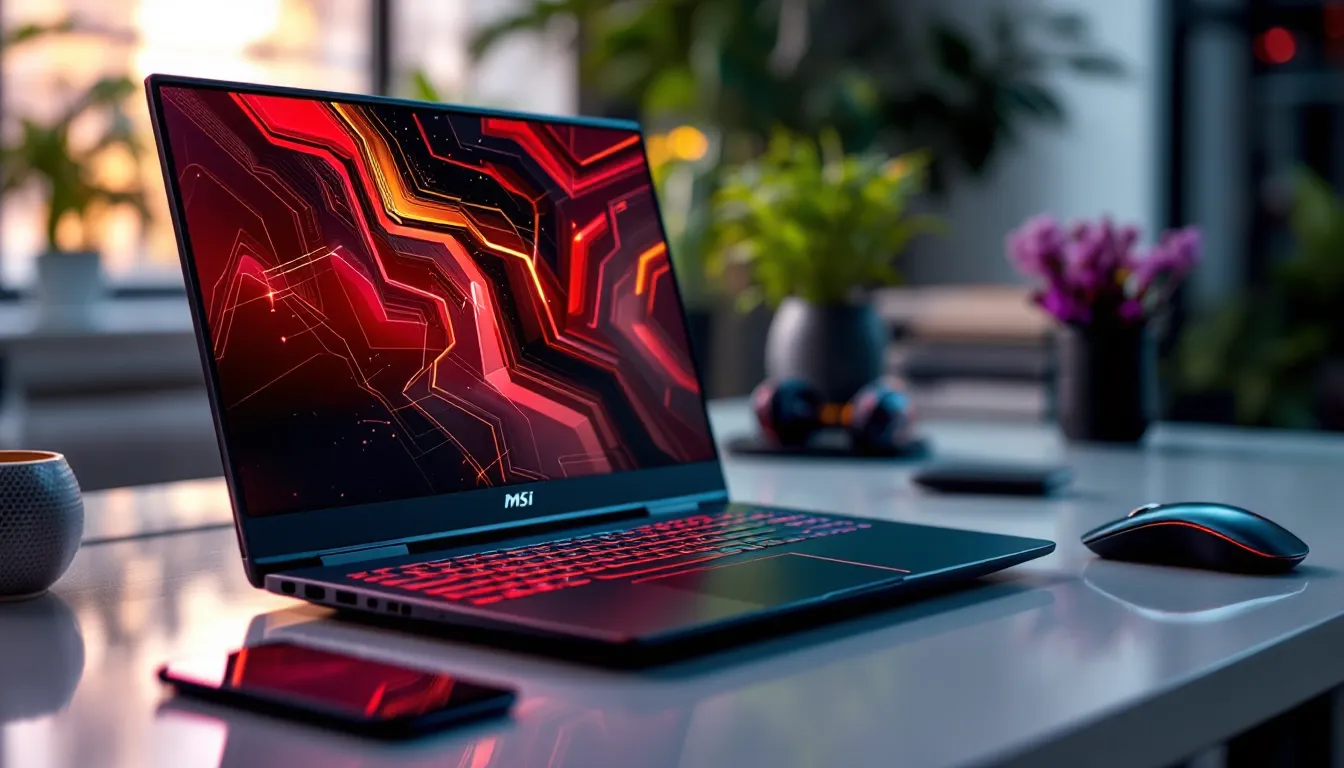
MSI went with a brushed aluminum lid and a plastic chassis for the GF63 Thin. It’s not premium metal construction throughout, but the materials feel sturdy enough for daily use. The black finish with red accents keeps the gaming aesthetic without going overboard, no RGB light strips or aggressive angular cuts that scream “gamer laptop” in a coffee shop.
Flex is minimal in the keyboard deck, though the lid does show some give if you press hard. That’s typical for laptops in this price range. The hinge feels solid with no wobble, which matters more for long-term durability than rigid metal everywhere.
Display and Visual Performance
Most GF63 Thin models feature a 15.6-inch IPS panel with 1920×1080 resolution and refresh rates of either 60Hz or 144Hz depending on configuration. The 144Hz option is the one to get if you play competitive shooters or fast-paced games where higher refresh rates impact your reaction time.
Color accuracy is adequate but not impressive. Expect around 60-70% sRGB coverage, which is fine for gaming but won’t cut it for serious photo or video editing. Brightness peaks around 250-300 nits, so outdoor visibility struggles in direct sunlight. The anti-glare coating helps indoors, though.
Viewing angles are decent thanks to the IPS tech. No major color shift when you’re not directly centered, which is useful if you’re gaming with someone looking over your shoulder or watching content at an angle.
Keyboard and Touchpad Experience
The single-zone red-backlit keyboard has a decent key travel of around 1.5mm. It’s not mechanical, but the feedback is satisfactory for both gaming and typing. The layout is standard with a full numpad, though some keys like the arrow keys are slightly cramped.
Anti-ghosting and N-key rollover are supported, which prevents missed inputs during frantic button-mashing sessions. The backlighting is functional but limited to a single color, no per-key RGB here. It’s bright enough for low-light gaming without being distracting.
The touchpad measures about 4.1 x 2.6 inches with Windows Precision drivers. It’s responsive for general navigation, though most gamers will plug in a mouse for actual gameplay. The physical left and right buttons are integrated into the touchpad surface and work reliably without requiring excessive force.
Performance Breakdown: Can It Handle Modern Games?
The real question anyone asks about a budget gaming laptop: can it actually run games, or is it just marketing?
Processor and Graphics Card Options
The 2026 MSI GF63 Thin lineup typically includes:
- Intel Core i5-12450H or i5-13420H (mid-tier configs)
- Intel Core i7-12650H or i7-13620H (higher-end configs)
These are 12th and 13th-gen H-series chips with 8-10 cores (mix of performance and efficiency cores). Base clocks sit around 2.0-2.5GHz with boost speeds hitting 4.4-4.9GHz. That’s solid for gaming workloads and multitasking, though you’ll see better sustained performance in thicker laptops with more robust cooling.
GPU options include:
- NVIDIA GeForce GTX 1650 (4GB GDDR6) – entry-level, struggles with newer AAA titles
- NVIDIA GeForce RTX 3050 (4GB GDDR6) – sweet spot for 1080p medium-high settings
- NVIDIA GeForce RTX 4050 (6GB GDDR6) – best option if you can find it, handles most 2026 games at high settings
The RTX models support DLSS, which helps boost frame rates in supported titles. The 4050 variant is the most future-proof option, though it typically pushes the price closer to $1,100.
RAM and Storage Configurations
Most configurations ship with:
- 8GB or 16GB DDR4-3200MHz RAM (dual-channel on 16GB models)
- 256GB, 512GB, or 1TB NVMe SSD
The 8GB models are the weakest link. Modern games increasingly demand 16GB, and 8GB leads to stuttering and longer load times. The good news: the GF63 Thin has two SO-DIMM slots, so upgrading RAM is straightforward. Same goes for storage, there’s an M.2 slot for adding or swapping SSDs.
If you’re buying a base model with 8GB, budget an extra $30-50 for a RAM upgrade. It makes a massive difference.
Real-World Gaming Benchmarks and Frame Rates
Here’s what you can expect with an RTX 3050 config (the most common mid-range option):
- Cyberpunk 2077 (1080p, Medium, DLSS Balanced): 45-55 FPS
- Elden Ring (1080p, High): 50-60 FPS
- Valorant (1080p, High): 144+ FPS (locked to refresh rate)
- Call of Duty: Modern Warfare III (1080p, Medium-High): 70-90 FPS
- Baldur’s Gate 3 (1080p, High): 40-50 FPS in busy areas
- Fortnite (1080p, High, Performance Mode): 100-120 FPS
The GTX 1650 drops 15-25% below those numbers, while the RTX 4050 adds 20-30% on top. Competitive esports titles like Valorant, CS2, and League of Legends run smoothly at 144 FPS or higher on any config.
The laptop handles 1080p gaming at medium-to-high settings across most current titles. You’ll need to dial back settings in the most demanding AAA games, and ray tracing is off the table unless you’re okay with sub-30 FPS. For a budget machine, that’s respectable performance.
Thermal Management and Cooling System
Thermals are where thin-and-light gaming laptops often stumble, and the GF63 Thin is no exception to physics. MSI uses a dual-fan cooling system with shared heatpipes for the CPU and GPU. It works, but there are compromises.
Under sustained gaming loads, expect CPU temps in the 80-90°C range and GPU temps around 75-85°C. Those numbers are within spec but higher than thicker gaming laptops with more airflow. You’ll occasionally see thermal throttling during extended sessions in demanding titles, which can drop performance by 5-10%.
Fan noise ramps up quickly under load. At full tilt, the fans hit around 45-50 dB, which is audible even with headphones. The upside: the cooling system keeps things from hitting critical temps and shutting down. The downside: it’s not a quiet machine during gaming.
The bottom panel and keyboard deck get warm but not uncomfortably hot. The area above the keyboard (near the hinge) is the hottest spot, so keep that in mind if you’re resting your fingers there during breaks.
Using a cooling pad helps drop temps by 3-5°C and reduces fan noise slightly. If you’re planning long gaming sessions, it’s a worthwhile $20-30 investment. Independent testing by gaming laptop reviews has shown that cooling pads provide measurable benefits for thin chassis designs like the GF63.
Battery Life: Gaming Unplugged vs. Everyday Use
The MSI GF63 Thin packs a 51Wh battery, which is on the smaller side for a gaming laptop. Battery life splits sharply between gaming and productivity workloads.
For everyday tasks, web browsing, document editing, streaming video, you’ll get around 4-5 hours with the screen at 50% brightness and the GPU in power-saving mode. That’s adequate for a class or a couple of work sessions but not all-day unplugged use.
Gaming on battery? Expect 1-1.5 hours max before you’re scrambling for an outlet. Performance also drops significantly when unplugged, as the laptop throttles the CPU and GPU to conserve power. Frame rates can fall by 30-50% compared to plugged-in gaming.
Bottom line: this is a plug-in gaming machine. The battery is enough to handle light tasks on the go, but plan to stay near an outlet for actual gaming sessions. The 120W or 150W power brick (depending on GPU) is what unlocks the full performance.
Connectivity and Ports: Everything You Need to Know
Port selection on the GF63 Thin is practical, covering the essentials without overkill:
Left side:
- 1x USB 3.2 Gen 1 Type-A
- 1x USB 3.2 Gen 1 Type-C (data only, no DisplayPort or charging)
- 1x HDMI 2.1 (supports 4K@60Hz output)
- 1x 3.5mm combo audio jack
Right side:
- 2x USB 3.2 Gen 1 Type-A
- 1x Ethernet (RJ-45) port
- 1x DC power input
The HDMI 2.1 port is solid for connecting to an external monitor or TV. You can run dual displays (laptop screen plus external) without issues. The lack of DisplayPort over USB-C is a minor letdown but not a dealbreaker at this price point.
Ethernet is crucial for competitive gaming where Wi-Fi latency matters. The built-in port supports Gigabit speeds, so you’re not bottlenecked by wired connections.
Wireless connectivity includes Wi-Fi 6 (802.11ax) and Bluetooth 5.1 or 5.2 depending on the exact model. Wi-Fi 6 provides lower latency and better performance in congested networks, which helps for online gaming.
The USB-A port count is generous, three total means you can connect a mouse, external keyboard, and USB headset or external drive without needing a hub. That’s a practical advantage over laptops that go all-in on USB-C and force you to use dongles.
Audio Quality and Immersion
The GF63 Thin features dual 2W speakers tuned by Nahimic Audio. They’re bottom-firing, which is typical for laptops in this category.
Audio quality is functional but unimpressive. The speakers get reasonably loud, enough to fill a small room, but they lack bass and sound tinny at higher volumes. Mids and highs are clear for dialogue in cutscenes or voice chat, but explosions and music lack punch.
The Nahimic software offers virtual surround sound modes and EQ presets (Gaming, Music, Movie). The surround effect is subtle and not a substitute for actual surround hardware, but it can add a bit of spatial awareness in headphone mode. The software also includes noise cancellation for the microphone, which helps clean up background noise during voice chat.
For serious gaming, you’ll want headphones or external speakers. The 3.5mm jack outputs clean audio with minimal interference. There’s no dedicated mic input, so the combo jack handles both duties.
The built-in microphone is average quality, acceptable for Discord or team chat but not for streaming or recording. It picks up keyboard clatter if you’re typing during calls.
Who Should Buy the MSI GF63 Thin in 2026?
The GF63 Thin isn’t a one-size-fits-all machine. It excels in specific use cases and falls short in others.
Best For: Entry-Level Gamers and Students
If you’re new to PC gaming and want a machine that handles modern titles at 1080p without very costly, the GF63 Thin is a strong contender. It’s also ideal for students who need a laptop for coursework but want to game during downtime. The portability factor is a real advantage here, carrying a 4.1-pound laptop between classes beats lugging a 6-pound gaming brick.
It’s also a good pick for casual gamers who play less demanding or older titles. If your library consists of indie games, esports titles like Valorant or Rocket League, or slightly older AAA games, this laptop handles them comfortably.
Another sweet spot: LAN parties or gaming at a friend’s place. The thin profile and relatively light weight make it easy to transport compared to bulkier options.
Budget-conscious buyers who plan to upgrade RAM and storage themselves also benefit. The base models are affordable, and the easy upgradeability lets you tailor the specs without paying MSI’s markup for pre-configured upgrades.
Not Ideal For: Hardcore Esports Competitors and Content Creators
If you’re chasing top placements in competitive esports, the GF63 Thin’s thermal throttling and occasional frame drops under load will frustrate you. Serious competitors need more consistent performance and better cooling, which typically means thicker, more expensive machines.
Content creators should also look elsewhere. The display’s limited color gamut makes it unsuitable for photo or video editing where color accuracy matters. The CPU and GPU are adequate for light editing, but rendering times lag behind more powerful laptops. If you’re streaming, the webcam quality is mediocre at best (720p with poor low-light performance), and you’ll need an external camera.
Gamers who prioritize ray tracing or 1440p/4K gaming won’t be satisfied either. The GF63 Thin is built for 1080p, and pushing beyond that leads to unplayable frame rates. Technology reviews from PCMag consistently highlight that budget laptops struggle with anything beyond 1080p gaming at medium-high settings.
Finally, if you need all-day battery life for heavy mobile use, this isn’t it. The short battery runtime limits true portability, making it more of a “transportable desktop replacement” than a true mobile workstation.
How the MSI GF63 Thin Compares to Other Budget Gaming Laptops
The budget gaming laptop space is crowded in 2026. Here’s how the GF63 Thin stacks up against key competitors:
ASUS TUF Gaming F15: Similar price range ($750-$1,100) with comparable specs. The TUF has better build quality with military-grade durability testing and slightly better thermals. But, it’s heavier (around 5 pounds) and thicker. If portability matters, the GF63 wins. If durability and cooling are priorities, the TUF edges ahead.
Acer Nitro 5: Another popular budget option, typically priced $50-100 less than the GF63 Thin. The Nitro 5 often includes slightly better GPUs at the same price point (RTX 3050 Ti vs. RTX 3050, for example). The tradeoff: it’s bulkier (5.5+ pounds), has a more aggressive gamer aesthetic, and the build quality feels cheaper. Performance-per-dollar favors the Nitro 5, but the GF63 feels more premium.
Lenovo IdeaPad Gaming 3: Budget king, often priced $600-$900 with AMD Ryzen processors and NVIDIA GTX/RTX GPUs. AMD’s Ryzen 5000 and 6000 series chips offer excellent multi-core performance, sometimes beating Intel in productivity tasks. The IdeaPad is heavier and has a plasticky build, but it’s hard to beat on pure value. If you’re willing to sacrifice portability for an extra $100 in your pocket, it’s worth considering.
HP Victus 15: Sits in the same price bracket with a cleaner, less gamer-focused design. Performance is comparable, but HP’s thermal management is inconsistent across units. Some users report good temps, others see heavy throttling. The GF63 Thin has more predictable performance.
Dell G15: Typically starts around $850-$1,200 with strong CPU options (Intel 12th/13th-gen or AMD Ryzen 7000 series). Build quality is solid, and Dell’s customer support is generally better than MSI’s. The G15 is chunkier and heavier, though. If you value support and build over portability, the G15 is a strong alternative.
Head-to-head, the MSI GF63 Thin wins on portability and overall build feel. It loses to some competitors on raw performance-per-dollar (Nitro 5, IdeaPad Gaming 3) and durability (TUF F15). Buying guides from Tom’s Guide often rank it in the top five budget gaming laptops for balanced performance and portability.
Upgrade Options and Future-Proofing Your Investment
One of the GF63 Thin’s strengths is its upgradeability. With basic tools and a bit of patience, you can significantly extend its lifespan.
RAM Upgrade: The two SO-DIMM slots support up to 64GB DDR4-3200MHz (2x32GB modules), though 32GB (2x16GB) is the practical sweet spot for gaming. If you buy an 8GB model, adding another 8GB stick costs around $25-30 and delivers immediate performance gains. Just ensure you match the speed (3200MHz) for best results.
Storage Upgrade: The M.2 NVMe slot (PCIe Gen 3 or Gen 4 depending on model year) makes swapping or adding an SSD easy. If you bought a 256GB or 512GB model, upgrading to a 1TB or 2TB drive costs $60-150 depending on brand and speed. Games are massive now, Call of Duty alone can consume 200GB, so extra storage pays off quickly. Some models include a secondary M.2 slot or a 2.5-inch SATA bay, though this varies by exact SKU.
What You Can’t Upgrade: The CPU and GPU are soldered to the motherboard, so you’re locked into whatever you buy initially. That’s why choosing the right config upfront matters. The RTX 3050 or 4050 models offer better longevity than the GTX 1650.
The display is also non-upgradable, though you can always connect an external monitor for better color accuracy or higher refresh rates.
Battery Replacement: Batteries degrade over time. The GF63’s 51Wh battery is user-replaceable (though it requires disassembling the bottom panel), and third-party replacements run $40-60. If you plan to keep the laptop for 3-4 years, expect to replace the battery once.
Future-Proofing Tips: If you’re buying new in 2026, aim for at least an RTX 3050, 16GB RAM, and a 512GB SSD. That config should handle 1080p gaming through 2028-2029 with some settings adjustments. The GTX 1650 models are already showing their age and will struggle with 2027-2028 releases.
Tips for Getting the Most Out of Your MSI GF63 Thin
Here are some practical tweaks and habits that’ll improve your experience with the GF63 Thin:
1. Undervolt the CPU (if applicable): Intel’s 12th and 13th-gen chips sometimes allow undervolting via ThrottleStop or Intel XTU. Reducing voltage by 50-80mV can drop temps by 5-10°C without sacrificing performance. Note: some BIOS versions lock undervolting, so check compatibility first.
2. Repaste the thermal compound: Stock thermal paste degrades over time or is applied inconsistently from the factory. Replacing it with quality aftermarket paste (Arctic MX-5, Thermal Grizzly Kryonaut) can improve temps by 3-8°C. This voids warranty but is worth considering after the warranty period ends.
3. Use MSI Dragon Center or Center Pro: These apps let you switch between performance profiles (Silent, Balanced, Extreme Performance). Extreme Performance mode pushes the fans harder and allows higher power limits for the CPU/GPU. It’s loud but useful when you need every frame. Switch to Silent mode for everyday tasks to reduce noise and heat.
4. Keep drivers updated: NVIDIA and Intel regularly release driver updates that improve performance or fix bugs. Use GeForce Experience for GPU drivers and Windows Update or Intel’s Driver & Support Assistant for chipset/CPU updates. Outdated drivers can cost you 5-15 FPS in some titles.
5. Enable XMP/DOCP for RAM: If you upgrade RAM, ensure the XMP profile is enabled in BIOS. This sets the RAM to its rated 3200MHz speed instead of the default 2666MHz or 2933MHz. The performance bump is modest but free.
6. Clean dust regularly: The slim chassis doesn’t leave much room for dust buildup before airflow suffers. Every 6-12 months, open the bottom panel and use compressed air to blow out the fans and heatsinks. This prevents thermal issues from developing over time.
7. Use an external monitor for competitive games: If you’re playing esports titles and your config has the 60Hz display, connect a 144Hz external monitor via HDMI. The higher refresh rate makes a noticeable difference in fast-paced shooters or MOBAs.
8. Adjust in-game settings wisely: Disable or lower settings that tank FPS without much visual benefit, shadows, ambient occlusion, anti-aliasing above 2x, and motion blur are common culprits. Prioritize texture quality and view distance for better visuals per frame.
9. Manage background apps: Close unnecessary programs before gaming. Discord, Chrome with 20 tabs, and launcher clients (Steam, Epic, Battle.net) all consume RAM and CPU cycles. Freeing up resources gives games more headroom.
10. Use a cooling pad during long sessions: As mentioned earlier, a cooling pad with decent airflow can drop temps by several degrees. Position it so the fans align with the GF63’s intake vents (typically on the bottom rear).
Conclusion
The MSI GF63 Thin occupies a specific sweet spot in the 2026 budget gaming landscape. It’s not the most powerful option, nor the cheapest, but it balances portability, build quality, and 1080p gaming performance better than most sub-$1,100 laptops. For entry-level gamers, students, or anyone who needs a reasonably slim machine that can handle modern titles at medium-to-high settings, it’s a solid pick.
The compromises are clear: thermal management under sustained load, limited battery life, and a display that won’t wow content creators. But those are trade-offs inherent to thin-and-light gaming laptops at this price point. If you prioritize portability and are willing to dial back settings in the most demanding games, the GF63 Thin delivers.
Choose your configuration carefully, aim for at least an RTX 3050, 16GB RAM, and 512GB storage for the best balance of performance and longevity. Plan to upgrade RAM and storage yourself if you’re buying a base model to save money. And keep expectations realistic: this is a 1080p gaming machine that excels at esports titles and handles AAA games with some settings adjustments, not a future-proof powerhouse.
For the gamer who values portability and needs a dependable machine that punches above its weight class without emptying the wallet, the MSI GF63 Thin remains a worthwhile consideration in 2026.