


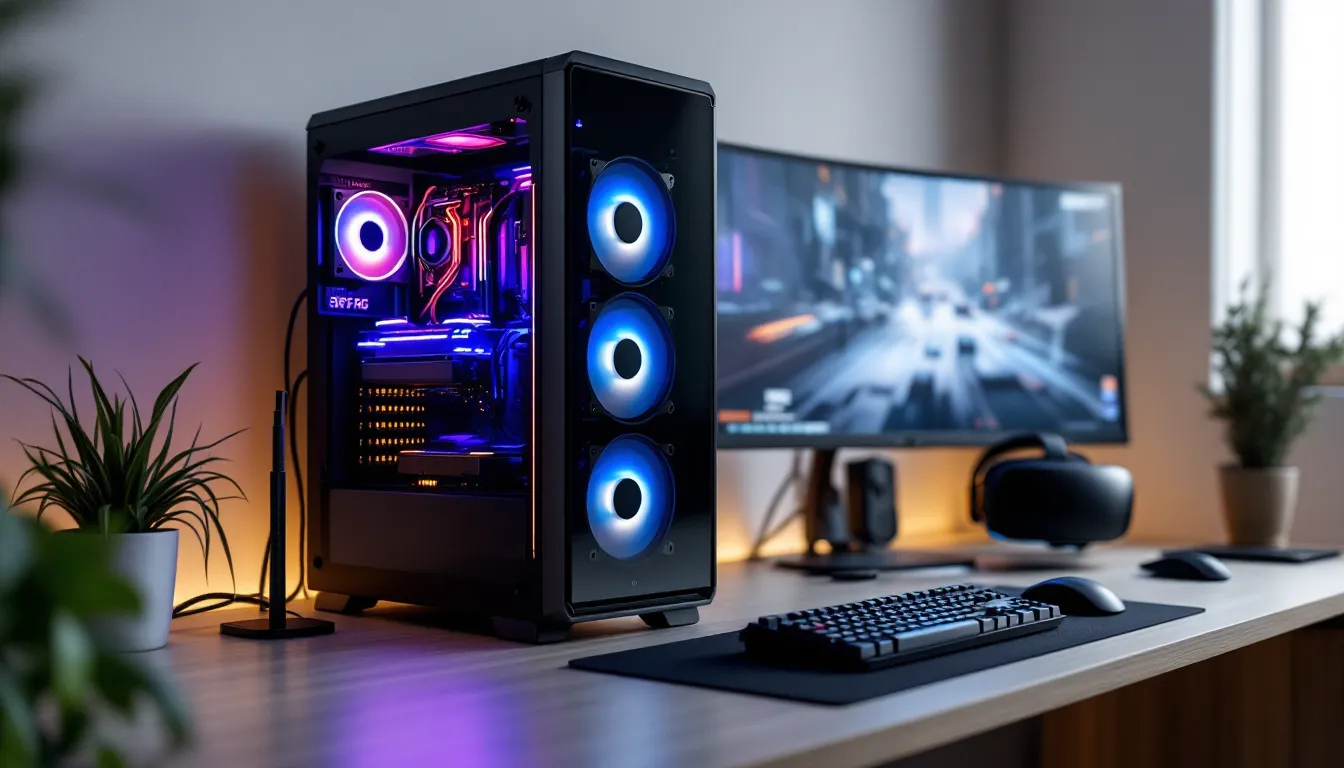
Virtual reality gaming has crossed from experimental novelty to mainstream requirement. But unlike traditional gaming where you can get away with budget hardware and lowered settings, VR demands precision. Drop below 90 FPS and you’re not just experiencing stutter, you’re inviting motion sickness. Miss the GPU requirements by one tier and that $500 headset becomes a paperweight.
The term “VR ready” gets slapped on systems that barely meet 2019 standards. In 2026, with titles like Half-Life: Alyx getting ray-traced updates and standalone headsets pushing wireless PCVR at 120Hz, the bar has shifted. A gaming PC for VR needs more than just a compatible GPU, it requires balanced thermal management, adequate CPU grunt for physics calculations, and enough headroom to avoid reprojection artifacts during intense scenes.
This guide cuts through the marketing terms and spec sheet confusion. Whether you’re building from scratch, considering a pre-built vr gaming pc, or upgrading an existing rig, you’ll learn exactly what hardware delivers smooth VR experiences in 2026 and where you can actually save money without compromising immersion.
Key Takeaways
- A VR ready gaming PC must maintain 90+ FPS consistently to avoid motion sickness and reprojection artifacts, making GPU and thermal management critical factors unlike traditional gaming.
- The RTX 4070 or RX 7700 XT represents the sweet spot for 2026 VR gaming, delivering high settings and supersampling at $1,400–$1,600 while avoiding unnecessary CPU overspending.
- 32GB RAM, quality cooling, and proper USB controller-equipped motherboards prevent tracking loss and thermal throttling during sustained VR sessions longer than traditional gaming sessions.
- Meta Quest 3 at 120Hz and Valve Index at 144Hz demand different GPU tiers; entry-level RTX 4060 handles Quest 3 at 90Hz, but RTX 4070 or higher ensures comfortable performance at higher refresh rates.
- Building your own VR ready gaming PC saves $150–300 by prioritizing GPU investment, avoiding CPU excess, and allocating remaining budget to RAM and cooling rather than RGB or unnecessary cores.
- Disable Windows USB power management and verify PCIe Gen 4 support in BIOS to prevent mid-session headset disconnects and maintain full GPU bandwidth during VR gameplay.
What Is a VR Ready Gaming PC?
A VR ready gaming pc is a system configured to meet the performance thresholds required by consumer VR headsets. Unlike regular gaming where frame drops cause visual annoyance, VR ties rendering directly to head movement, latency or stuttering triggers nausea for many users. “VR ready” certification typically means the system can maintain minimum frame rates (usually 90 FPS) at the native resolution of common headsets.
But here’s where it gets murky: VR ready badges from 2021-2023 often referenced GTX 1060-level performance. That was adequate for early Oculus Rift titles but falls short for modern experiences. In 2026, most new VR games target higher resolutions and refresh rates. The Meta Quest 3 running PCVR pushes 2064×2208 per eye at 90-120Hz. Valve Index users expect 120-144Hz support. A true vr ready gaming pc now needs to handle these demands while leaving overhead for background processes and reprojection buffers.
Understanding VR Ready Specifications
VR ready specs break into three tiers: minimum (barely functional), recommended (comfortable experience), and optimal (headroom for supersampling).
GPU: The defining factor. NVIDIA’s RTX 4060 or AMD’s RX 7600 serve as entry points, handling most VR titles at native resolution with modest settings. Mid-range options (RTX 4070, RX 7700 XT) deliver high settings and maintain frame rates in complex scenes. Premium cards (RTX 4080 and above) enable supersampling, rendering at higher-than-native resolution for sharper visuals, and max settings in demanding titles.
CPU: Often underestimated in VR. Physics calculations, positional tracking, and background VR runtime software create significant CPU overhead. Intel’s 13th/14th gen i5 or AMD’s Ryzen 5 7600 provide adequate performance. More demanding simulation titles (racing sims, flight sims) benefit from higher core counts.
RAM: 16GB DDR4/DDR5 is the minimum. Some VR titles combined with streaming or recording push memory usage past 12GB. 32GB provides comfortable headroom and costs little relative to total build price.
Connectivity: DisplayPort 1.4 or USB-C with DP Alt Mode for wired headsets. USB 3.0+ ports (preferably USB-C) for cable-based headsets and accessories. Some builders overlook this, budget motherboards sometimes skimp on USB controller quality, causing tracking issues.
VR Ready vs. VR Minimum: What’s the Difference?
VR minimum specifications are what manufacturers list to avoid lawsuit territory. They’re the absolute floor, expect reprojection (synthetic frame insertion), reduced settings, and potential discomfort during action-heavy sequences.
VR ready targets comfortable sustained gameplay. You’ll hit native refresh rates in most titles, settings can be medium-high, and motion-to-photon latency stays imperceptible. The difference shows immediately: minimum specs might maintain 80 FPS in Beat Saber but chug to 60 FPS during multi-target sequences. VR ready systems hold 90+ consistently.
The gap widens in newer releases. Asgard’s Wrath 2 and Resident Evil 4 VR (PCVR versions) stress both GPU and CPU. Minimum spec systems require aggressive resolution scaling that defeats the purpose of VR’s immersion. VR ready hardware runs these at native resolution, delivering the visual fidelity developers intended.
One caveat: “VR ready” certifications from pre-built manufacturers sometimes reference outdated benchmarks. Always cross-check component specs against current headset requirements rather than trusting badges.
Essential Hardware Requirements for VR Gaming in 2026
Building a vr gaming pc in 2026 requires understanding where performance bottlenecks actually occur. It’s not just about raw GPU power, VR’s unique rendering demands create dependencies between components that don’t matter as much in flat gaming.
GPU Requirements: The Heart of VR Performance
The GPU handles stereoscopic rendering (two separate viewpoints, one per eye), higher-than-1080p resolutions, and the sustained frame rates VR demands. Dropping a frame in Call of Duty is barely noticeable. Drop a frame in VR and your brain registers a disconnect between head movement and visual update.
Entry Level (Native Resolution, Medium Settings):
- NVIDIA RTX 4060 / RTX 3060 Ti: Handles Quest 3 PCVR at 90Hz with medium-high settings in most titles. Struggles with supersampling.
- AMD RX 7600 / RX 6700 XT: Competitive performance with better value. AMD’s FSR 2.1 integration helps in supported titles.
- VRAM: 8GB minimum. Some newer VR titles like Metro Awakening push past 7GB at high textures.
Mid-Range (High Settings, Supersampling 1.2-1.5x):
- NVIDIA RTX 4070 / RTX 4070 Super: Sweet spot for 2026. Runs Valve Index at 120Hz comfortably, handles Quest 3 at 120Hz with high settings.
- AMD RX 7700 XT / RX 7800 XT: Better rasterization performance per dollar. Ray tracing weaker than NVIDIA but few VR titles use RT extensively.
- VRAM: 12GB provides breathing room for future titles and high-res texture packs.
Premium (Max Settings, Supersampling 2.0x+, Future-Proofed):
- NVIDIA RTX 4080 / RTX 4090: Enables aggressive supersampling for clarity approaching real monitors. Handles experimental features like eye-tracked foveated rendering.
- AMD RX 7900 XT / XTX: Competitive performance in VR workloads, often $200-400 less than equivalent NVIDIA options.
Recent GPU benchmark comparisons show that VR performance doesn’t always scale linearly with traditional gaming benchmarks, architecture efficiency matters more than raw TFLOPS.
CPU Performance for Smooth VR Experiences
VR rendering happens in parallel: one eye per thread, plus physics, positional tracking calculations, and runtime overhead. A weak CPU creates frame pacing issues even when GPU utilization sits at 80%.
Minimum Recommended:
- Intel Core i5-13400 / i5-14400: 10 cores (6P+4E) handle VR runtime overhead while maintaining game performance.
- AMD Ryzen 5 7600: 6 cores, strong single-thread performance. Budget-friendly without compromising VR capability.
Optimal:
- Intel Core i7-13700K / i7-14700K: 16 cores provide headroom for streaming or recording VR gameplay.
- AMD Ryzen 7 7800X3D: 3D V-Cache benefits simulation titles (racing/flight sims) heavily. Top choice for enthusiasts.
VR doesn’t scale infinitely with core count, beyond 8 performance cores, you’re paying for features like streaming or background encoding. Single-thread speed matters more than raw core count for most titles.
RAM, Storage, and Other Critical Components
RAM: 16GB DDR4-3200 or DDR5-5600 is functional. 32GB provides comfort, VR titles load high-res assets, and many gamers run Discord, browsers, or monitoring software simultaneously. Speed matters less than capacity: DDR4-3200 vs DDR5-6000 shows minimal VR performance difference.
Storage: NVMe SSD is non-negotiable. VR titles have large file sizes (Microsoft Flight Simulator exceeds 150GB with add-ons) and load textures dynamically. A Gen3 NVMe drive (minimum 500GB) is adequate. Gen4/Gen5 speeds show negligible benefit in VR loading times.
Motherboard: Needs sufficient USB bandwidth for headset and tracking accessories. B660/B760 (Intel) or B650 (AMD) chipsets provide adequate connectivity. Avoid bargain-bin boards with single USB controllers, multiple VR peripherals can saturate bandwidth and cause tracking glitches.
Power Supply: 650W for entry builds (RTX 4060-class), 750-850W for mid-range (RTX 4070-class), 1000W for premium (RTX 4080+). VR’s sustained load makes 80+ Gold certification worthwhile, efficiency translates to lower heat and noise.
Top VR Headsets and Their PC Requirements
Not all VR headsets make identical demands on hardware. Understanding what you’re targeting helps avoid overbuilding or, worse, underestimating requirements.
Meta Quest 3 and PC VR Connectivity
The Meta Quest 3 dominates the market as a standalone headset that also supports PCVR via Link cable or Air Link (wireless). Resolution: 2064×2208 per eye. Refresh rates: 72Hz, 90Hz, 120Hz (experimental in some titles).
PC Requirements:
- Minimum: RTX 3060 / RX 6600 XT at 90Hz with Link compression artifacts visible.
- Recommended: RTX 4060 Ti / RX 7600 XT for clean 90Hz. RTX 4070 for 120Hz in lighter titles.
- Optimal: RTX 4070 Super or better for 120Hz with high bitrate Air Link (reduces compression).
Quest 3’s Link protocol compresses the video stream, higher-end GPUs enable better bitrates and less artifacting. Wireless Air Link adds encoding overhead: CPU with Quick Sync (Intel) or decent encoder (NVIDIA’s NVENC) helps maintain quality.
Valve Index System Demands
The Valve Index remains a favorite for enthusiasts prioritizing refresh rate and FOV. Resolution: 1440×1600 per eye. Refresh rates: 80Hz, 90Hz, 120Hz, 144Hz.
PC Requirements:
- 80-90Hz: RTX 4060 handles most titles.
- 120Hz: RTX 4070 / RX 7700 XT for consistent frame delivery.
- 144Hz: RTX 4080 or higher. Few titles support 144Hz, and diminishing returns are steep.
Index uses DisplayPort connection, no compression losses, but also no wireless option. The high refresh rates reveal frame pacing issues that lower-Hz headsets hide. Detailed hardware performance analysis demonstrates that maintaining 144Hz requires GPU headroom exceeding what frame rate numbers suggest.
HTC Vive and PlayStation VR2 PC Compatibility
HTC Vive XR Elite and Vive Pro 2 target professional and enthusiast markets. Pro 2 pushes 2448×2448 per eye at 120Hz, among the highest resolution consumer headsets.
PC Requirements (Vive Pro 2):
- Minimum: RTX 4070, anything less requires aggressive resolution scaling.
- Recommended: RTX 4070 Ti / RX 7900 XT for native resolution.
- Optimal: RTX 4080 for supersampling.
Vive’s ecosystem uses SteamVR tracking with external base stations, CPU overhead is slightly lower than inside-out tracking systems but requires more physical setup.
PlayStation VR2 officially requires a PS5, but unofficial PC adapters emerged in late 2025. Performance demands similar to Quest 3 but with quirks around eye-tracking features that aren’t fully supported on PC. Not recommended as a primary PCVR headset unless you already own one.
Best Pre-Built VR Ready Gaming PCs in 2026
Building your own vr ready gaming pc maximizes value, but pre-builts offer warranty support and time savings. The market has improved, 2026 pre-builts don’t gouge as egregiously as 2021-2022 models did.
Budget-Friendly VR Ready Options ($800-$1200)
This tier targets entry-level VR: native resolution at medium settings, 90Hz on Quest 3 or base Vive.
Typical Specs:
- GPU: RTX 4060 / RX 7600
- CPU: Intel i5-13400 / Ryzen 5 7600
- RAM: 16GB DDR4-3200
- Storage: 500GB NVMe SSD
- PSU: 650W Bronze
What to Watch For: Budget builds often cheap out on cooling, stock Intel cooler struggles under VR loads. Check for case airflow (minimum two fans). Motherboard USB quality matters: avoid boards with only USB 2.0 front panel headers.
Best Value: Systems pairing last-gen GPUs (RTX 3060 Ti at discount) with current-gen CPUs. Performance is comparable to RTX 4060 while saving $100-150.
Mid-Range VR Powerhouses ($1200-$1800)
This is the sweet spot, comfortable settings, high refresh rates, and headroom for demanding titles.
Typical Specs:
- GPU: RTX 4070 / RX 7700 XT
- CPU: Intel i5-14600K / Ryzen 7 7700X
- RAM: 32GB DDR5-5600
- Storage: 1TB NVMe Gen4
- PSU: 750W Gold
What to Watch For: Check GPU brand, some pre-builts use low-tier partner cards (single-fan models) that throttle under sustained VR load. Verify case has adequate airflow for higher TDP components. Ensure at least one USB-C front panel connection.
Best Value: Configurations with RTX 4070 and mid-tier CPUs (i5 instead of i7). The GPU matters more in VR: spending extra on CPU cores rarely translates to better VR performance unless you’re into sim racing.
Premium VR Gaming Rigs ($1800+)
This tier eliminates compromises: max settings, aggressive supersampling, future-proofing for next-gen headsets.
Typical Specs:
- GPU: RTX 4080 / RX 7900 XTX
- CPU: Intel i7-14700K / Ryzen 9 7900X
- RAM: 32GB DDR5-6000+
- Storage: 2TB NVMe Gen4
- PSU: 850-1000W Gold/Platinum
- Cooling: AIO liquid cooler (240mm+)
What to Watch For: At this price, poor build quality is unacceptable. Verify component brands (avoid generic RAM/PSU). Cable management should be clean, airflow affects sustained performance. Check if Windows 11 Pro is included (Home version can have weird USB power management issues with VR).
Best Value: Systems built during seasonal sales (Black Friday, post-holiday) often discount by $200-300. Watch for configurations pairing current-gen high-end GPU with last-gen high-end CPU (i9-13900K is cheaper than i9-14900K, performs within 5% in VR).
Building Your Own VR Ready Gaming PC
Building your own gaming pc for vr delivers the best price-to-performance ratio and lets you prioritize components that actually matter for VR workloads.
Component Selection Strategy
Start with GPU, it’s 40-50% of your total budget. Choose based on target headset and desired settings:
- Identify your headset: Quest 3 / Vive Pro 2 / Valve Index
- Pick target refresh rate: 90Hz, 120Hz, or 144Hz
- Select GPU tier: Match to the specs outlined earlier
- Choose CPU: One tier below GPU in relative cost (if buying RTX 4070, pair with i5/Ryzen 5, not i9/Ryzen 9)
- Allocate remaining budget: 32GB RAM > better cooling > faster storage > RGB lighting
Sample $1400 Build (VR-Optimized):
- GPU: RTX 4070 ($580)
- CPU: Ryzen 5 7600 ($200)
- Motherboard: B650 ($140)
- RAM: 32GB DDR5-5600 ($100)
- Storage: 1TB NVMe Gen3 ($60)
- Case: Good airflow model ($80)
- PSU: 750W Gold ($100)
- CPU Cooler: Tower cooler ($40)
- Total: ~$1,300 (leaving room for peripherals)
This prioritizes GPU and RAM over CPU excess. The Ryzen 5 7600 won’t bottleneck the RTX 4070 in VR scenarios, and the saved $100+ vs. a Ryzen 7 goes toward better GPU or more RAM.
Mistakes to Avoid:
- Overspending on CPU: An i7-14700K doesn’t help VR performance much vs. i5-14600K, but costs $150 more. Redirect that to GPU.
- Skimping on PSU: Cheap PSUs create ripple that causes USB disconnects, a VR killer. Stick to Tier A/B units from reputable reviewers.
- Single-fan GPUs: They thermal throttle under sustained VR load. Minimum dual-fan, triple-fan preferred.
- Ignoring case airflow: VR sessions often last 1-2 hours. Poor airflow causes thermal throttling 30 minutes in.
Step-by-Step Assembly Tips for VR Builds
VR-specific assembly concerns focus on connectivity and cooling.
Step 1: Install I/O Shield and Motherboard Standoffs
Standard procedure, but verify standoffs align, misaligned boards cause USB issues later.
Step 2: Install CPU, RAM, and M.2 SSD on Motherboard
Do this outside the case, easier access. Install RAM in slots 2 and 4 (consult manual) for dual-channel. Don’t forget M.2 SSD mounting screw: many first-time builders miss this.
Step 3: Mount Motherboard in Case
Connect front panel USB 3.0/USB-C headers immediately after mounting, you’ll forget otherwise. These headers matter for VR headset connectivity.
Step 4: Install PSU and Route Cables
Mount PSU fan-side down (most modern cases). Route 24-pin ATX, 8-pin EPS (CPU power), and PCIe cables before installing GPU.
Step 5: Install GPU
Remove necessary PCIe slot covers (most GPUs need 2-3 slots). Seat firmly until click. Connect PCIe power cables, don’t daisy-chain if your GPU has two 8-pin connectors: use separate cables.
Step 6: Cable Management and Fan Setup
Zip-tie cables behind motherboard tray. Set case fans to intake (front/bottom) and exhaust (top/rear). Positive pressure (more intake than exhaust) reduces dust.
Step 7: First Boot and BIOS Setup
Enable XMP/EXPO for RAM (unlocks rated speed). Verify all fans spinning. Check CPU and GPU temps in BIOS before installing OS.
VR-Specific BIOS Settings:
- Disable USB Power Management: Prevents USB ports from sleeping during VR sessions (causes tracking loss).
- Enable PCIe Gen 4: Ensures GPU runs at full bandwidth.
- Set Fan Curves: Aggressive curves maintain temps during long VR sessions.
Optimizing Your PC for VR Performance
Raw hardware is half the equation. Software optimization and configuration prevent performance loss from background processes and thermal issues.
Graphics Settings and Frame Rate Targets
VR titles have settings menus, but also per-application settings in SteamVR or Oculus software that supersede in-game options.
SteamVR Settings (for Index, Vive, etc.):
- Render Resolution: Default is often 150% (supersampling). Start at 100% for native resolution, increase until GPU hits 95%+ utilization.
- Refresh Rate: Set to 90Hz initially. Only increase to 120/144Hz if maintaining frame rate consistently. Reprojection at 120Hz is worse than native 90Hz.
- Motion Smoothing: Synthetic frame insertion. Leave OFF for competitive games (adds latency). Enable for cinematic experiences if frame drops occur.
Oculus/Meta Settings (for Quest via Link):
- Bitrate: Higher is better for visual quality but requires bandwidth. Wired Link: 500 Mbps. Air Link: 200 Mbps (Wi-Fi 6 router).
- Encode Resolution Width: Default 3664. Increase to 4000+ if GPU handles it, reduces compression artifacts.
- ASW (Asynchronous Spacewarp): Similar to motion smoothing. Disable for fast-paced games.
In-Game Settings Priority:
- Anti-Aliasing: Reduce first if struggling with performance. MSAA is expensive: FXAA is cheap but blurry. TAA is good middle ground.
- Shadows: Medium vs Ultra has minimal visual difference in VR but significant performance cost.
- Textures: High/Ultra if you have 12GB+ VRAM, otherwise Medium.
- Post-Processing: Effects like motion blur and bloom are often nauseating in VR, disable them.
Recent optimization guides for PC gaming emphasize that VR settings don’t always correlate with flat gaming, shadows matter less because VR depth perception is stronger than shadow cues.
Cooling Solutions to Prevent Thermal Throttling
VR sessions generate sustained load unlike traditional gaming’s variable intensity. A system stable in Cyberpunk 2077 might throttle after 45 minutes in Half-Life: Alyx.
GPU Cooling:
- Minimum: Dual-fan design. Set custom fan curve (60% fan at 65°C, 80% at 75°C, 100% at 80°C).
- Optimal: Triple-fan models with vapor chamber cooling. They maintain boost clocks longer.
- Deshrouding: Advanced users remove GPU shroud and mount case fans, improves temps 5-10°C but voids warranty.
CPU Cooling:
- Air Cooling: Adequate for most. Tower coolers (Thermalright, DeepCool) handle up to i7/Ryzen 7 under load.
- AIO Liquid Cooling: Benefits high-core-count CPUs or compact cases with poor airflow. 240mm minimum, 280/360mm for i9/Ryzen 9.
- Thermal Paste: Stock paste degrades after 2-3 years. Repasting with quality compound (Arctic MX-5, Thermal Grizzly) restores 3-5°C.
Case Airflow:
- Minimum: Two intake (front), one exhaust (rear).
- Optimal: Three intake (front), two exhaust (top/rear). Creates positive pressure (less dust) while exhausting hot air.
- Fan Placement: Bottom intake helps GPU temps. Top exhaust prevents hot air stagnation.
Ambient Temperature: VR increases room temperature, you’re wearing a heat-generating device on your head, and sustained gaming produces more BTUs. Ensure room has AC or ventilation if gaming in summer.
Driver Updates and Software Optimization
Outdated drivers cause performance issues, crashes, or compatibility problems with new VR titles.
GPU Drivers:
- NVIDIA: Update via GeForce Experience or manual download. VR-specific optimizations often included in Game Ready drivers.
- AMD: Adrenalin software auto-notifies. AMD’s “VR Ready” driver updates specifically target VR performance.
- Frequency: Check monthly. Critical updates appear around major VR title launches.
Windows Optimization:
- Disable Game Bar and DVR: Windows Game Bar (Xbox overlay) consumes resources and causes stutter. Disable in Settings > Gaming.
- Set Power Plan to High Performance: Prevents CPU from downclocking during VR. Control Panel > Power Options.
- Disable Background Apps: Discord hardware acceleration, Chrome with 50 tabs, RGB software, these eat CPU cycles. Close before VR sessions.
- Windows Updates: Keep current. VR headset drivers sometimes require latest Windows build.
USB Drivers: Intel/AMD chipset drivers matter more than most realize. Poor USB drivers cause tracking loss, audio dropouts, and headset disconnects. Download directly from motherboard manufacturer, not Windows Update.
Monitoring Performance: Use fpsVR (SteamVR) or Oculus Debug Tool’s performance overlay to track frame times, reprojection ratio, and GPU/CPU utilization. Frame time consistency matters more than average FPS, consistent 90 FPS beats fluctuating 100-80 FPS.
Common VR Gaming PC Mistakes to Avoid
Building or buying a vr ready gaming pc comes with pitfalls that aren’t obvious from flat gaming experience.
Mistake 1: Prioritizing CPU Over GPU
Intel i9 paired with RTX 4060 is backwards for VR. The GPU bottlenecks before the CPU does. Reverse it, i5 with RTX 4070, and performance doubles.
Mistake 2: Ignoring USB Quality
Budget motherboards with single USB controllers choke when headset, base stations, and peripherals connect simultaneously. Tracking stutters even though frame rate is fine. Spend $20 extra for a board with multiple controllers or add a PCIe USB card ($30).
Mistake 3: Insufficient Cooling in Small Cases
Compact ITX builds look slick but trap heat. Sustained VR sessions thermal throttle components. If going small form factor, budget for quality case (Lian Li A4, Cooler Master NR200) and low-profile CPU cooler.
Mistake 4: Buying “VR Ready” Pre-Builts Without Checking Specs
“VR Ready” stickers mean nothing. Systems with GTX 1660 or 8GB RAM still get labeled this way. Always verify GPU model, RAM capacity, and PSU wattage against current requirements.
Mistake 5: Skipping Windows USB Power Management Settings
Windows defaults to powering down USB devices to save energy. This disconnects VR headsets mid-session. Disable in Device Manager > USB Root Hub > Power Management > uncheck “Allow computer to turn off this device.”
Mistake 6: Underestimating Storage Needs
VR titles are large. Microsoft Flight Simulator with VR add-ons exceeds 200GB. Half-Life: Alyx is 70GB. A 500GB SSD fills fast. Start with 1TB minimum.
Mistake 7: Ignoring Wi-Fi 6 for Wireless PCVR
Wireless VR via Air Link or Virtual Desktop requires Wi-Fi 6 (802.11ax) router placed near play space. Wi-Fi 5 causes compression artifacts and latency. If building new PC, include Wi-Fi 6E adapter or use dedicated PCIe card.
Mistake 8: Overlooking Room-Scale Play Space
Not a PC mistake per se, but buying equipment without considering physical space. VR needs 6.5ft x 6.5ft minimum for room-scale. Measure before purchasing headset and configuring vr gaming pc setup.
Future-Proofing Your VR Gaming Setup
“Future-proofing” is marketing speak, but strategic component choices extend relevance by 3-5 years instead of 2.
Invest in GPU Headroom
VR’s performance demands scale faster than flat gaming. Supersampling, higher refresh rates, and better textures all require GPU power. Buying one tier higher than current need (RTX 4070 instead of 4060) extends viability significantly. The $150 premium pays off when next-gen headsets launch in 2027-2028.
32GB RAM Now, Not Later
RAM prices fluctuate. If building today and budget allows, install 32GB immediately. Future VR titles will use it, and upgrading later means matching timings/brands or replacing entire kit.
PCIe 4.0 Minimums
PCIe 5.0 provides no current VR benefit, but PCIe 3.0 is aging out. Ensure motherboard supports PCIe 4.0 for GPU slot and at least one M.2 slot. DirectStorage (upcoming Windows feature) may leverage fast SSDs for VR texture streaming.
Quality PSU with Headroom
GPUs are power-hungry and next-gen cards trend higher. A 750W or 850W PSU lasts through multiple GPU upgrades. Quality units (Seasonic, Corsair RMx, EVGA Supernova) have 10-year warranties, outlasting other components.
Modular Case Design
Cases with removable drive cages, PSU shrouds, and tool-free panels simplify future upgrades. Spending $100 on a good case means it carries forward to next build.
Avoid Proprietary Parts
Pre-builts with custom motherboards, PSUs, or coolers complicate upgrades. Dell and HP are notorious for this. If buying pre-built, verify standard ATX components.
Wi-Fi 7 and USB4 Coming
Wi-Fi 7 (802.11be) promises lower latency for wireless VR. USB4 enables single-cable headset connectivity. These aren’t necessary in 2026 but might matter by 2028. If motherboard shopping, check for USB4 support (currently rare but appearing on high-end boards).
Stay Within the Upgrade Path
Intel 12th-14th gen share LGA1700 socket, CPU upgrades possible without motherboard swap. AMD AM5 (Ryzen 7000 series) promises support through 2027+. Choosing current platforms with longevity avoids dead-end sockets.
Realistic Expectations
No PC is “future-proof.” Plan for GPU upgrade in 3-4 years and CPU/motherboard/RAM refresh in 5-6 years. The goal is maximizing usability within realistic timeframes, not delaying inevitable upgrades forever.
Conclusion
Building or buying a vr ready gaming pc in 2026 demands attention to details that traditional gaming PCs can ignore. Frame rate consistency, sustained thermal performance, and USB bandwidth aren’t afterthoughts, they’re fundamental to avoiding nausea and achieving the immersion VR promises.
The entry point is lower than most expect. An $800-$1000 system with RTX 4060 and adequate cooling handles Quest 3 PCVR comfortably at native resolution. But the sweet spot sits around $1400-$1600, where RTX 4070-class GPUs deliver high settings, supersampling, and headroom for demanding titles. Premium builds justify their cost for enthusiasts chasing 144Hz Valve Index or Vive Pro 2 experiences, but returns diminish rapidly past the mid-range tier.
Whether building custom or buying pre-built, prioritize GPU over CPU, invest in 32GB RAM, ensure quality cooling, and verify USB connectivity. The “vr gaming pc” label means nothing without checking actual component specs against headset requirements. Cross-reference recommendations against current benchmarks, watch for thermal throttling in sustained loads, and configure software to eliminate the background processes and power management quirks that plague VR sessions.
The VR ecosystem matures rapidly. Headsets launching in 2027 will push higher resolutions and refresh rates. Building with slight headroom now, whether that’s 32GB instead of 16GB, or RTX 4070 instead of 4060, extends your gaming pc for vr’s relevance from adequate-today to comfortable-tomorrow. The difference between acceptable and excellent VR comes down to eliminating the tiny stutters and frame drops that flat gaming forgives but VR never does.